Lock ZIP Files on Mac with Password Protection
A complete, step-by-step instructions to password-protecting your folders and ZIP files on macOS. Learn ways to use the native Terminal, discover the limitations of the Mac Archive Utility, and find the best secure alternatives.
To lock a ZIP file on Mac without downloading software, you must use the Terminal application. Open Terminal, type zip -er archive_name.zip file_to_compress, press Enter, and type your desired password twice. The native Mac Archive Utility does not support adding passwords via right-click.
Table of Contents
- Why the Mac Archive Utility Isn't Enough
- approach 1: Zip Password Mac Terminal (Free, native)
- approach 2: external Archivers (Keka, Archiver)
- Our Recommendation: Folder Lock for Mac
- Tutorial: Securing Files Without Terminal
- Free vs Full Version Comparison
- Troubleshooting & Password Recovery
- Frequently Asked Questions

What are you trying to do?
Just encrypt one file quickly
Use the native Terminal. It's free and already installed on your Mac, though it requires typing commands.
Jump to Terminal Steps →Protect whole folders securely
If you want military-grade AES-256 encryption without using code, dedicated software is the safest route.
See secure software →Securely sync to Google Drive
Cloud lockers can encrypt your files locally on your Mac *before* they are uploaded to your cloud-based storage.
Read about cloud lockers →Recover a forgotten password
Locked yourself out? We cover what to do if you've lost the password to your encrypted Mac file.
Go to troubleshooting →How macOS Handles ZIP Files
If you're wondering how to lock a ZIP file on Mac, you've likely already discovered a frustrating truth: Apple makes it incredibly straightforward to compress files, but surprisingly unintuitive to lock them.
When you right-click a file on macOS (Ventura, Sonoma, or Sequoia) and select "Compress", the system uses the native Archive Utility. This utility creates a standard ZIP file instantly. That said, it offers no menu choice to add a password.

To create a password-secured ZIP on Mac, you have three primary paths:
- The Terminal: Using command-line instructions (Free, but intimidating for beginners).
- external ZIP Apps: Downloading apps like Keka or The Unarchiver to add a GUI.
- Dedicated Security Vaults: Using professional software to lock and encrypt files at the AES-256 level without fiddling with ZIP archives.
Mac Terminal ZIP Password Command
If you want to password protect zip mac free without installing any extra software, the Terminal is your only native choice. Here is the exact process.
Step-by-Step Terminal Instructions
Follow these steps carefully to lock a zip file with password mac:
- Open the Terminal app (press
Cmd + Space, type "Terminal", and hit Enter). - Type
cdfollowed by a space, then drag the folder that contains the file you want to compress into the Terminal window. Press Return. (This changes the directory to where your file lives). - Now, enter the encryption command. Copy the code below:
zip -er ProtectedArchive.zip "Name Of Your Folder or File"
Breaking down the command:
zipcalls the archiving tool.-etells the tool to encrypt (lock) the archive.-rstands for "recursive" (essential if you are zipping a folder, so it includes all files inside).ProtectedArchive.zipis what the new file will be named.
- Press Return. The Terminal will prompt you to
Enter password:. - Type your desired password. Note: The cursor will not move, and no characters (not even stars) will appear. This is a normal security function on Mac. Just type carefully and hit Return.
- You will be asked to
Verify password:. Type it again and hit Return.
Your password-secured ZIP file is now created in the same location as the original file.
Password Protect ZIP on Mac Without Terminal
If typing commands into the Terminal makes you nervous, you can use external archiving tools designed for macOS. Apps like Keka or Archiver add a graphical user interface (GUI) to the archiving process.
While these tools are easier than the Terminal, they still rely on standard ZIP encryption formats. Standard ZIP encryption (ZipCrypto) is notably weak against modern brute-force attacks. While some tools support AES-256 ZIP encryption, cross-platform compatibility with Windows users can sometimes break.
Best Mac ZIP Tools with Password Protection: Comparison
| approach | Difficulty | Encryption Strength | Cost | Best For |
|---|---|---|---|---|
| Mac Terminal | High (Command Line) | Standard ZIP (ZipCrypto) | Free | Tech-savvy users zipping a single file. |
| Keka / The Unarchiver | Medium | AES-256 (if configured) | Free / Paid choices | Users who need a visual interface for ZIPs. |
| macOS FileVault | Low (Set once) | XTS-AES-128 | Free | Full disk encryption; does not protect individual sent files. |
| Folder Lock (Dedicated) | Low (Drag-and-Drop) | Military-Grade AES-256 | Free Trial / Paid | Users needing robust file protection, cloud syncing, and secure sharing. |

Reasons We Recommend Folder Lock for Mac Users
Folder Lock offers drag-and-drop AES-256 encryption built to feel like a native macOS app. Instead of compressing and uncompressing a file every time you need it, Folder Lock creates secure "Desktop Lockers" that open like standard drives. It also integrates seamlessly with your cloud-based storage to encrypt files before they are uploaded.
Available directly via the Mac App Store.

Folder Lock vs. Standard Mac ZIP Files
Why upgrade from a straightforward Terminal ZIP to dedicated software? Here is how Folder Lock handles your data privacy differently.

Real-Time, On-The-Fly Encryption
ZIP files require you to decrypt the entire archive, edit a file, and re-encrypt the whole archive. Folder Lock uses "on-the-fly" encryption. Data is decrypted only in your Mac's memory (RAM), not on the hard drive. You unlock the vault, edit your Excel or Word file directly, and it remains encrypted the moment you hit save.
No Extracted Residue
When you double-click a standard ZIP, it usually extracts the contents to a temporary folder. If you forget to delete that unencrypted folder, your data is exposed. Folder Lock mounts a secure virtual drive that leaves no unencrypted traces on your hard drive.
Secure Cloud Integration
Standard cloud-based storage keeps your files synced, but it doesn't encrypt them with your own keys. Folder Lock creates "Cloud Lockers" that integrate with Dropbox, Google Drive, and OneDrive. It encrypts the files before they are uploaded, ensuring that even if your cloud account is breached, your files remain unreadable.
Password-Free Secure Sharing
Emailing a ZIP file and then texting the password is a security risk. To share files securely, Folder Lock relies on asymmetric 4096-bit RSA encryption. Authorized users can access the shared files using their own unique credentials, meaning you never have to transmit a password. (Note: The recipient must also have a registered Folder Lock account).
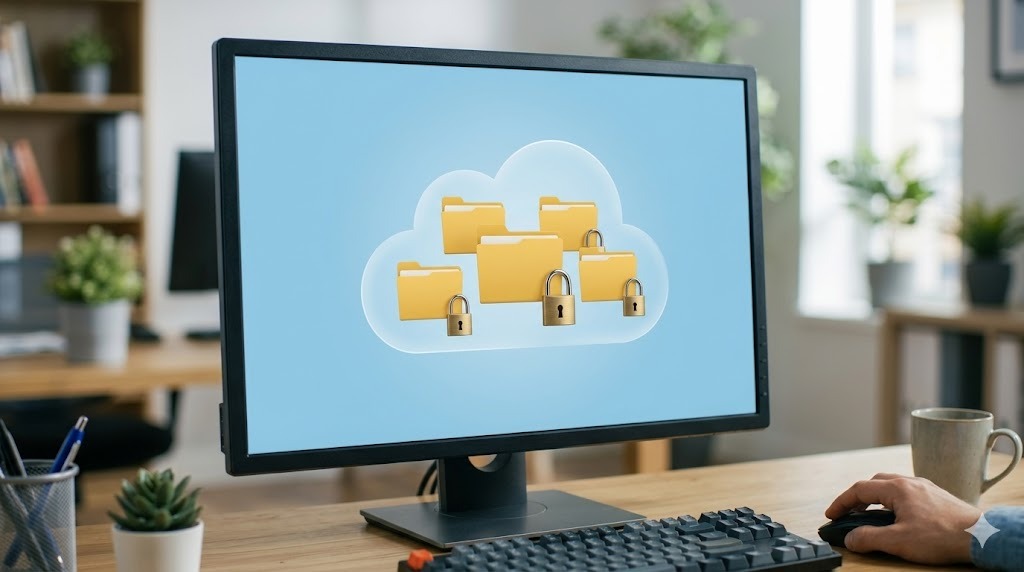
Ways to Encrypt Files on Mac using Folder Lock
If you choose to bypass the Terminal and use a dedicated tool, the process becomes significantly more visual. Here is how you secure a document using Folder Lock's Desktop Locker.
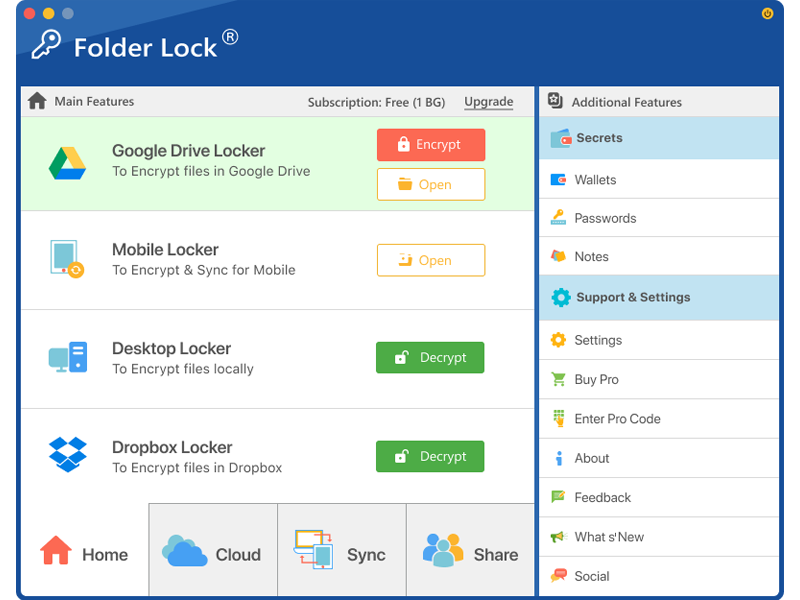
Install and Authenticate
Download Folder Lock from the Mac App Store. Upon launching, you will be prompted to create your Master Password. Do not lose this password; there are no backdoors to recover it.
Open the Desktop Locker
On the primary dashboard, locate the "Desktop Locker" section. Click the Open button. Folder Lock will authenticate your identity and mount the locker as a temporary, accessible drive in Finder.
Drag and Drop Files
Find the PDF, Word document, or image you wish to protect. Simply drag and drop the file directly into the newly opened Desktop Locker window in Finder.
Encrypt and Unmount
Return to the Folder Lock application. The "Open" button will now say Encrypt (or Close). Click it. The virtual drive will immediately unmount and disappear from Finder, converting your files back into a single, unbreakable encrypted vault.

Folder Lock Pricing: Free vs. Full Version
Folder Lock offers a generous free tier for users who only need to protect a small handful of files, but professionals will likely hit the storage limit quickly. Here is an honest breakdown of what you get.
| function | Free Version ($0) | Pro Version ($39.95) |
|---|---|---|
| Desktop Locker Size | Limited to 1 GB | Unlimited |
| Cloud Lockers (Google Drive, Dropbox) | Limited to 1 GB | Unlimited |
| Synced Devices | Up to 2 Devices | Up to 5 Devices |
| Secure File Sharing | Not Available | Unlimited Users |
| Secrets (Wallets, Passwords, Notes) | Not Available | Included |
Editorial Note: If you frequently work with large video files or extensive raw photo archives, the 1GB limit on the free version will be restrictive. The $39.95 Pro version is a one-time license, not a recurring subscription.
Problem Solving & Password Recovery
We receive thousands of queries regarding locked files, such as "how to unlock a password-secured ZIP file on Mac" or "forgot zip password mac terminal". Here are the owner-safe recovery notes.
"I forgot the password to a ZIP file I created on Mac. How do I fix it?"
The hard truth: If you used the Terminal to encrypt a ZIP file and lost the password, there is no "backdoor" or reset link. Mac's ZipCrypto relies entirely on the password to decrypt the hash. Your only choices are:
- Check your Mac's Keychain Access app. Sometimes, users save passwords there without realizing it.
- Attempt to use a dictionary-attack recovery tool (only legal for files you own), though this can take days or years depending on password complexity.
"Terminal says 'zip warning: name not matched'"
This usually means you typed the filename wrong or didn't include the exact path.
Fix: Use the drag-and-drop approach. Type zip -er NewName.zip (leave a space after zip) and physically drag the file from Finder into the Terminal window. The Mac will auto-fill the correct, exact path.
Forgot your Folder Lock Password?
If you choose to use professional software like Folder Lock, you must keep your Master Password safe. since it uses true AES-256 encryption with no backdoors (to protect you from hackers and data brokers), the developer cannot reset your password for you. Always keep a secure backup of your Master Password in a dedicated password manager.
Common Questions and Answers
We've compiled answers to the most frequent questions regarding Mac file locks and data privacy.

Q1. How to create a password protected ZIP on Mac without Terminal?
You cannot do this natively. The native Archive Utility does not support passwords. You must download a external app like Keka, The Unarchiver, or upgrade to a dedicated security tool like Folder Lock.
Q2. What encryption does macOS use for password-protected ZIPs?
When using the zip -e command in Terminal, macOS typically defaults to the older ZipCrypto standard. This is generally considered weak by modern cybersecurity standards. It will stop a casual snooper but won't stop a dedicated hacker. For AES-256, you need software.
Q3. Can I view Folder Lock's encrypted files directly in the Google Drive web browser?
No. since Folder Lock utilizes strict Client-Side Encryption, your files are encrypted on your Mac before they are uploaded. If you log into the Google Drive website, you will only see an unreadable, encrypted container file. To view the contents, you must download the file and open it via the Folder Lock application on an authenticated device.
Q4. Does the person I am sharing a file with need to own Folder Lock?
Yes. If you use Folder Lock's secure sharing function (which avoids sending passwords over text/email), the recipient must also have a registered Folder Lock account. The system ties the decryption key directly to their verified user identity.
Q5. How to open a password-protected ZIP received from a Windows user?
Just double-click it. Mac's native Archive Utility will recognize that it is locked and immediately prompt you with a dialog box asking for the password. Enter it, and it will extract normally.
More on Digital Security & Privacy
How Data Brokers Collect and Monetize Personal Data
You might be locking your personal ZIP files, but data brokers are scraping your public data daily. They collect information from public records, app permissions, and social media, compiling profiles to sell to advertisers or other entities. To truly safeguard your data online, you must pair local file encryption (like Folder Lock) with strict browser hygiene and data removal requests.
GDPR and CCPA Rights Explained Simply
If you live in the EU (GDPR) or California (CCPA), you have the legal right to demand companies delete your data. This is known as the "Right to be Forgotten." You can submit data deletion requests to platforms, ensuring that even if your Mac is secure, your cloud footprint is minimized.
Our Verdict
If you only need to send a single tax document to an accountant once a year, the Mac Terminal zip -e command is sufficient. But if you store sensitive financial records, private photos, or client data on your Mac, relying on ZIP files is a workflow nightmare with significant security gaps. For true privacy and seamless cloud integration across your Apple devices, we highly recommend upgrading to a dedicated vault system.

Compatible with macOS 13 and above. Available on the Mac App Store.